Project
CTF Platform 제작 - 1 / CI 를 위한 Jenkins 구축
supp0rt
2024. 11. 21. 20:11
개발 환경
- VMWARE Workstation PRO 17
- OS
- ubuntu 22.04 LTS
- CI
- Jenkins 2.486-jdk17 docker
- Public IP
- ngrok
- cloudflare(https testing)
- Eenvt Trigger
- Github Webhook
- OS
기본 정보
- http://<ngrok domain>:9090
- jenkins docker 내부 /var/jenkins_home에 기본 데이터 존재
환경 설정
편의를 위해 /home/<계정>/jenkins 폴더를 만든 후 안에서 진행하였다
Docker
docker-compose.yml
services:
  jenkins:
    image: jenkins/jenkins:2.486-jdk17
    ports:
      - "9090:8080" # http
    volumes:
      - jenkins_home:/var/jenkins_home
    container_name: "jenkins"
  ssh-agent:
    image: jenkins/ssh-agent
volumes:
  jenkins_home:
Start docker
docker compose up
# docker ps 및 docker images로 확인
# docker exec -it -u root jenkins /bin/bash   도커 접속
http://localhost:9090 접속으로 정상 작동 확인
ngrok
install for linux
curl -sSL <https://ngrok-agent.s3.amazonaws.com/ngrok.asc> \\
  | sudo tee /etc/apt/trusted.gpg.d/ngrok.asc >/dev/null \\
  && echo "deb <https://ngrok-agent.s3.amazonaws.com> buster main" \\
  | sudo tee /etc/apt/sources.list.d/ngrok.list \\
  && sudo apt update \\
  && sudo apt install ngrok
start ngrok
- 회원 가입 후 로그인
- Getting Started → Your Authtoken → Token copy
ngrok config add-authtoken '본인 토큰'
ngrok http 9090

# <https://5a37-122-128-169-7.ngrok-free.app> 과 같은 url 도출
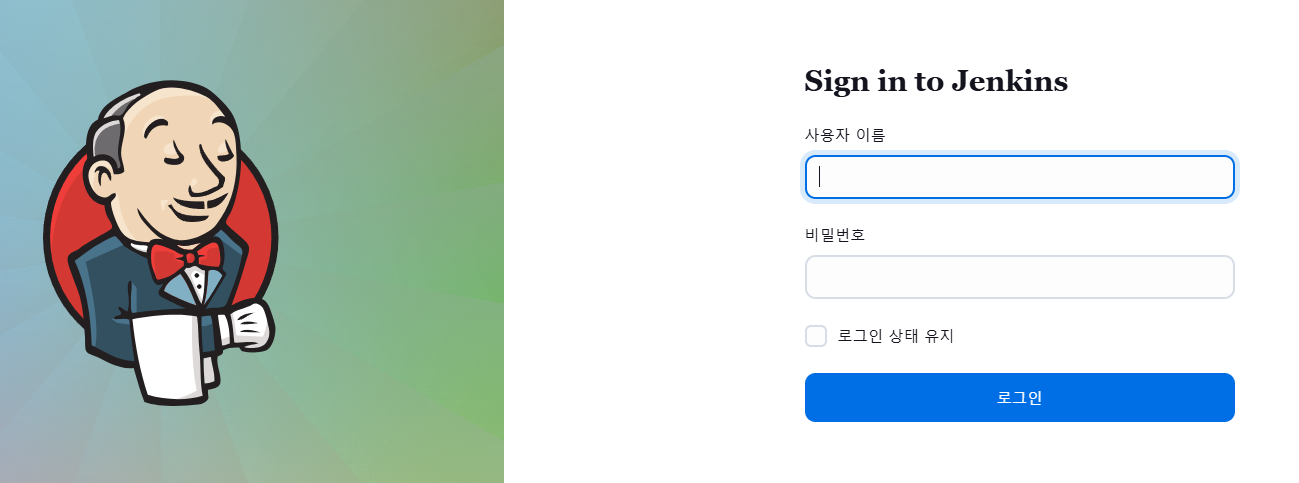
- http://localhost:9090 혹은 ngrok으로 발급된 주소로 들어가서 기본 jenkins 홈페이지 접속
- docker compose 시 발급되는 기본 비밀번호 입력
- 추천 플러그인 설치 후 계정 가입
※ jenkins 도커 내부 /var/jenkins-home/secrets/initialAdminPassword 위치에 존재